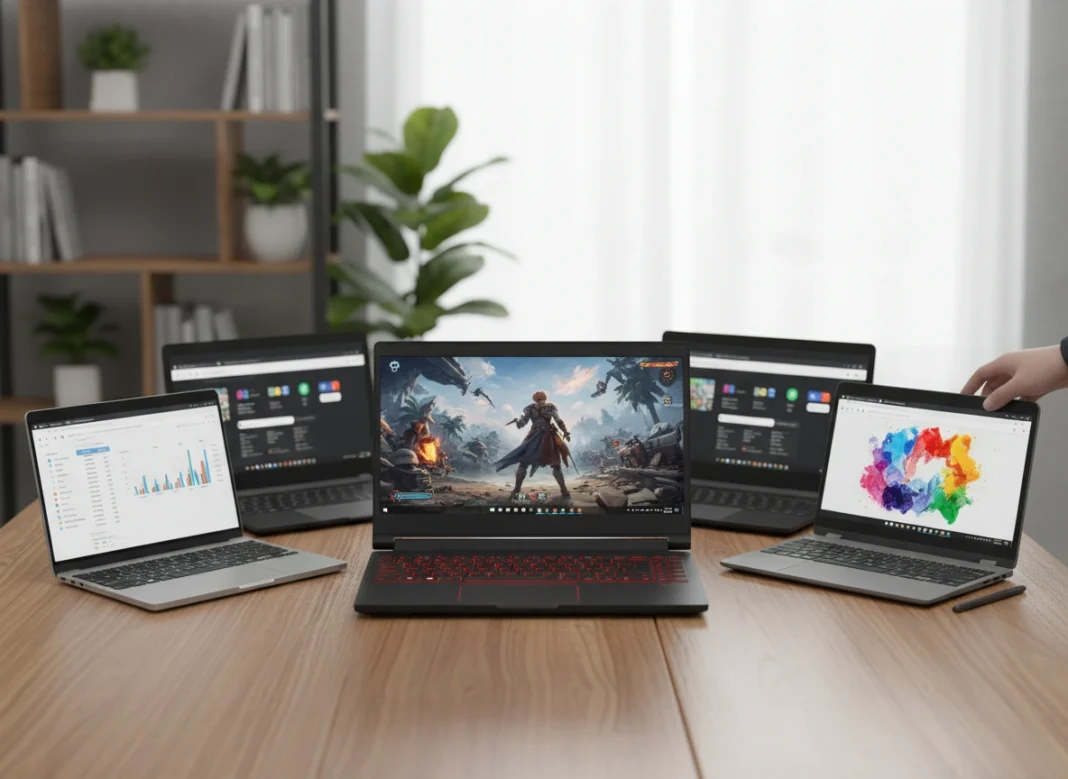
Buying a laptop is a significant investment. Unlike a smartphone, which you might upgrade every two years, a good laptop is often a commitment for three, five, or even seven years. The market is flooded with options ranging from budget-friendly Chromebooks to high-end gaming rigs and sleek ultrabooks. With confusing technical jargon like “integrated graphics,” “NVMe SSDs,” and “clock speeds,” it is easy to feel overwhelmed.
Choosing the wrong device can lead to years of frustration—slow load times, insufficient storage, or a battery that dies halfway through a meeting. Conversely, buying more power than you need is a waste of money. The goal is to find the “Goldilocks” machine: one that fits your workflow, matches your budget, and handles your daily tasks without breaking a sweat.
This guide will walk you through every critical factor you need to consider, demystifying the specs so you can make an informed decision.
Define Your Purpose First
Before you look at a single price tag or spec sheet, you need to ask yourself one question: What will I actually do with this laptop? Your intended use case dictates every other decision you will make.
For General Productivity and Education
If you are a student or an office worker who primarily uses a web browser, Microsoft Office (Word, Excel, PowerPoint), and streaming services like Netflix, you do not need a powerhouse. Your priority should be a comfortable keyboard, a decent screen, and portability.
- Target: Mid-range processors, 8GB RAM, and excellent battery life.
For Creative Professionals
Graphic designers, video editors, and 3D artists have very different needs. Software like Adobe Premiere Pro, Blender, or AutoCAD demands significant computational power. You need a machine that can render complex visuals quickly and handle large files.
- Target: High-end processors, dedicated graphics cards, and color-accurate screens.
For Gamers
Gaming laptops are a breed of their own. They prioritize raw performance and cooling over battery life and portability. If you want to play modern AAA titles at high frame rates, you need specific hardware that can keep up.
- Target: High-refresh-rate screens, powerful dedicated GPUs, and robust cooling systems.
Setting a Realistic Budget
Laptops generally fall into three price tiers. Knowing what to expect in each bracket helps manage expectations.
- Budget ($300 – $600): Good for browsing, email, and basic schoolwork. Build quality is usually plastic, and screens may not be the brightest. Chromebooks often dominate the lower end of this tier.
- Mid-Range ($600 – $1,200): The sweet spot for most users. You get metal chassis, better battery life, faster processors, and sharper screens. This is where you find the best value for money.
- Premium ($1,200+): High-performance machines, ultrabooks, and gaming rigs. Expect top-tier build quality, the fastest components, and premium features like 4K OLED screens or Thunderbolt 4 support.
Choosing Your Operating System
The operating system (OS) is the soul of your laptop. It determines the software you can run and the overall user experience.
Windows
Windows is the most versatile and widely used OS. It offers the broadest compatibility with software, especially for gaming and business applications. You will find Windows on laptops from dozens of manufacturers, giving you the widest range of hardware choices.
macOS
Found only on Apple MacBooks, macOS is favored by creatives for its stability and ecosystem integration. If you already own an iPhone or iPad, a MacBook is often the logical choice due to features like AirDrop and iMessage integration. However, the hardware comes at a premium price.
Chrome OS
Google’s operating system is simple, secure, and built around the Chrome web browser. It is incredibly lightweight, meaning it runs well on cheaper hardware. It is perfect for students and users who do everything in a browser, but it cannot run standard Windows or Mac desktop software.
Decoding Hardware Specifications
This is where most buyers get stuck. Let’s break down the alphabet soup of computer specs.
The Processor (CPU)
The CPU is the brain of the computer.
- Intel: Look for Core i5 for a balance of price and performance. Core i7 and i9 are for power users. Core i3 is suitable only for budget machines.
- AMD: The Ryzen 5 is the direct competitor to the i5 and offers excellent multitasking performance. Ryzen 7 and 9 are top-tier powerhouses.
- Apple Silicon: The M-series chips (M1, M2, M3) have revolutionized laptop efficiency, offering incredible speed with battery life that often exceeds 15 hours.
Random Access Memory (RAM)
RAM allows your laptop to multitask. Think of it as your desk space; the more you have, the more papers (apps) you can have open at once without things slowing down.
- 8GB: The absolute minimum for Windows and Mac today. Okay for browsing and light work.
- 16GB: The recommended standard. It future-proofs your machine and allows for smooth multitasking.
- 32GB+: Necessary only for intense video editing, 3D modeling, or high-end gaming.
Storage (SSD vs. HDD)
Never buy a laptop with a traditional spinning Hard Disk Drive (HDD) as its main drive. They are slow and fragile. Always insist on a Solid State Drive (SSD).
- 256GB: Serviceable if you store most files in the cloud.
- 512GB: A comfortable amount for most users to store photos, documents, and a few games.
- 1TB+: Essential for video editors and gamers with large libraries.
Graphics Card (GPU)
- Integrated Graphics: Built into the CPU. Sufficient for 90% of users (streaming, office work, light photo editing).
- Dedicated Graphics (NVIDIA/AMD): A separate chip for processing visuals. Essential for gaming, video rendering, and 3D design. Look for NVIDIA GeForce RTX series for the best performance.
Display, Battery, and Portability
Your interaction with the laptop happens through the screen and keyboard, so don’t overlook them.
Screen Size and Resolution
- 13-14 inches: The best balance for portability. Easy to slip into a backpack.
- 15-16 inches: The standard size. Offers more screen real estate for multitasking but is heavier.
- 17 inches: Desktop replacements. Heavy and hard to carry, but great for gaming or editing without an external monitor.
- Resolution: Aim for at least 1920 x 1080 (Full HD). Anything less will look pixelated. For creative work, look for higher resolutions and color accuracy ratings (sRGB or DCI-P3 coverage).
Battery Life
Manufacturer claims are often exaggerated. If a spec sheet says “10 hours,” expect 7-8 hours of real-world use. If you work on the go, look for independent reviews that test battery life under browsing or video playback conditions. Aim for a device that can comfortably last a full workday (8 hours) without a charger.
Portability and Build
If you commute daily, weight matters. An “Ultrabook” usually weighs under 3 pounds (1.3 kg). Gaming laptops can easily weigh double that. Also, consider the materials—aluminum chassis tend to be more durable and rigid than plastic ones.
Tips for Comparing Brands and Models
Once you have your specs in mind, how do you choose between a Dell, HP, Lenovo, or Apple?
- Read Professional Reviews: Sites like The Verge, PCMag, or reputable tech YouTubers test these machines thoroughly. Look for reviews that mention thermal issues (does it get too hot?) or keyboard quality.
- Check the Ports: In the race to be thin, many laptops have ditched USB-A and HDMI ports for USB-C only. If you hate carrying dongles, check that the laptop has the ports you need (SD card slot, HDMI, standard USB).
- Keyboard and Trackpad: If possible, go to a store and type on the keyboard. Key travel and spacing are subjective. A bad trackpad can ruin the experience of an otherwise great laptop.
- Customer Support and Warranty: Some brands are notorious for poor support. Check reliability rankings to see which manufacturers stand behind their products.
Common Mistakes to Avoid
Even smart buyers make simple errors that lead to regret.
- Buying for “Future Proofing” Overkill: Do not spend an extra $800 on an i9 processor and 64GB of RAM if you only browse the web. Technology depreciates fast; buy for what you need now and in the near future, not for a hypothetical scenario five years away.
- Ignoring the Screen Brightness: A dim screen (under 250 nits) makes a laptop unusable outdoors or in bright offices. Aim for 300 nits or higher.
- Obsessing Over One Spec: A fast processor is useless if the laptop overheats and throttles its speed after 10 minutes. Look at the whole package, including cooling and build quality.
- Forgetting Upgradeability: Some laptops solder their RAM and SSD to the motherboard, meaning you can never upgrade them. If you think you might need more space later, check if the laptop allows upgrades.
Conclusion
Choosing the right laptop is a balancing act between performance, portability, and price. By identifying your primary use case first, you can immediately filter out hundreds of unsuitable options. Whether you need the rugged utility of a business ThinkPad, the sleek efficiency of a MacBook Air, or the raw power of a gaming rig, the perfect machine is out there.
Take your time to research. Prioritize the features that impact your daily life—like the screen, keyboard, and battery—over flashy marketing terms. A well-chosen laptop is a powerful tool that should serve you seamlessly for years to come.
Please visit this website for more info.